开发一款主流应用[教程]
aide吧
全部回复
仅看楼主
level 7
爪哇在此℃
楼主
2019年04月06日 13点04分
1
level 7
爪哇在此℃
楼主
首先我们要添加支持库:
compile 'com.android.support:design:25.+'
compile 'com.android.support:appcompat-v7:25.+'
compile'com.dk.view.patheffect:Library:0.1.1@aar'
compile 'yasic.library.ParticleTextView:particletextview:0.0.5'
minSdkVersion为15
2019年04月06日 14点04分
3
level 7
爪哇在此℃
楼主
回头看源码(ParticleTextView)
2019年04月06日 14点04分
5
level 7
爪哇在此℃
楼主
简单,源码贴出来。
public class ParticleText
{
public static void smart(Activity a,ParticleTextView particleTextView){
ParticleTextViewConfig config1 = new ParticleTextViewConfig.Builder()
//显示的文字
.setTargetText("JAVA白")
//显示时间
.setReleasing(0.03)
//文字粗细
.setParticleRadius((int)3)
//形成粒子时的偏差
.setMiniDistance(0)
//文字大小
.setTextSize(250)
//粒子密度
.setRowStep(6)
.setColumnStep(6)
//形成动画
.setMovingStrategy(new RandomMovingStrategy())
.instance();
particleTextView.setConfig(config1);
particleTextView.startAnimation();
}
}
在activit类里使用:
ParticleTextView par=findViewById(R.id.particleTextView);
ParticleText.smart(this,par);
2019年04月06日 14点04分
6
level 7
爪哇在此℃
楼主
在看看PathTextView,效果不错,但不能打汉字。楼主也写过类似的,几十行代码(支持汉字),效果没这个好。
2019年04月06日 14点04分
7
level 7
爪哇在此℃
楼主
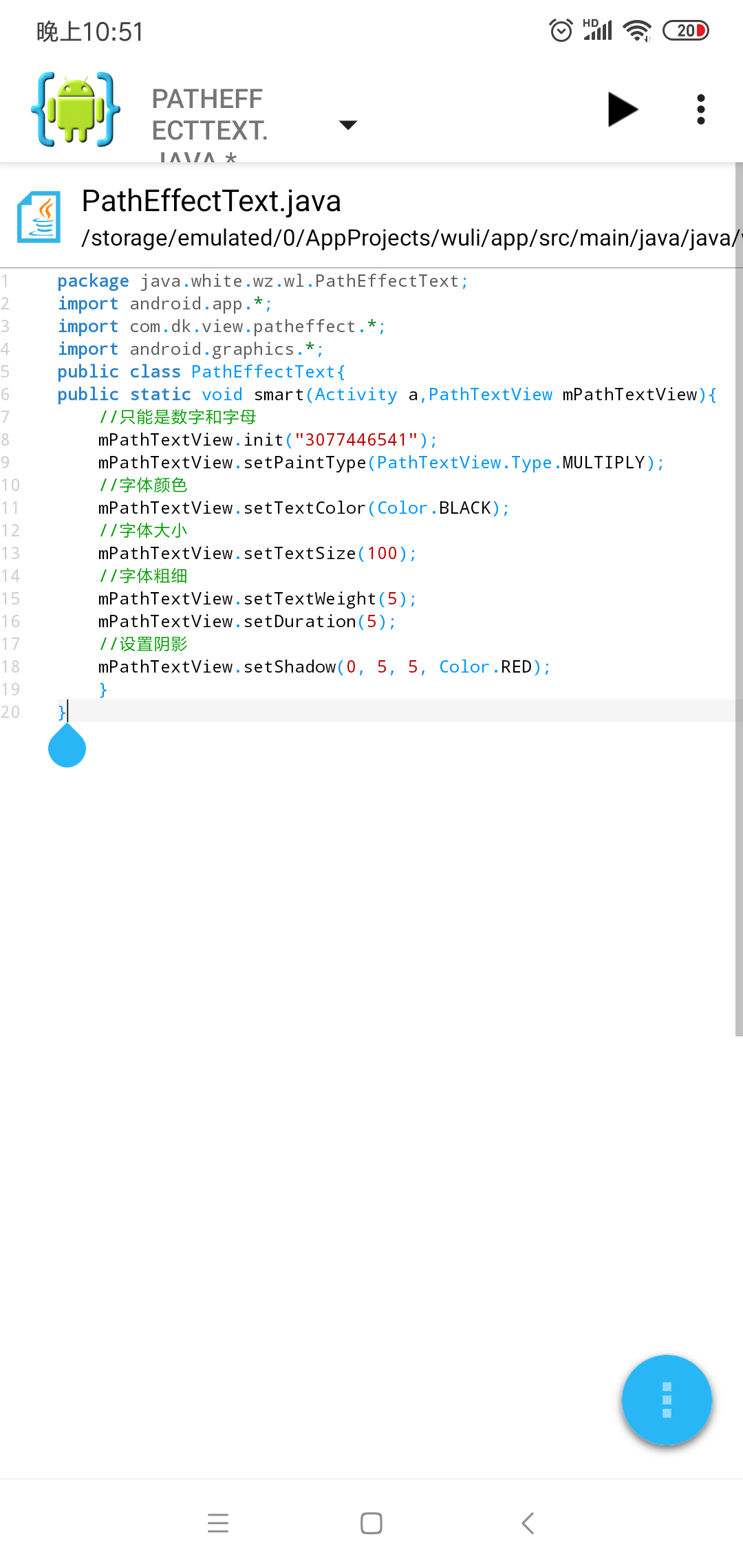
继续贴源码
public class PathEffectText{
public static void smart(Activity a,PathTextView mPathTextView){
//只能是数字和字母
mPathTextView.init("3077446541");
mPathTextView.setPaintType(PathTextView.Type.MULTIPLY);
//字体颜色
mPathTextView.setTextColor(Color.BLACK);
//字体大小
mPathTextView.setTextSize(100);
//字体粗细
mPathTextView.setTextWeight(5);
mPathTextView.setDuration(5);
//设置阴影
mPathTextView.setShadow(0, 5, 5, Color.RED);
}
}
使用:
PathTextView pat=findViewById(R.id.path);
PathEffectText.smart(MainActivity.this,pat);
2019年04月06日 14点04分
8
level 7
爪哇在此℃
楼主
接下来是侧边栏。不做过多解释,直接贴代码
2019年04月06日 14点04分
9
level 7
爪哇在此℃
楼主
app:headerLayout即侧边栏的布局
2019年04月06日 15点04分
11
level 7
爪哇在此℃
楼主
app:menu,可有可无有,即在侧边栏上添加一个菜单
2019年04月06日 15点04分
12
level 7
爪哇在此℃
楼主
AppBarLayout是一个用来盛放toolbar的布局,在其内部的元素都会当做toolbar组合在一起。不用AppBarLayout直接使用Toolbar也是可以的。在这里AppBarLayout主要作用是控制toolbar中文字与控件颜色。
2019年04月06日 15点04分
13
level 7
爪哇在此℃
楼主
android:fitsSystemWindows="true"是为了将侧边栏延时至状态栏实现沉浸式效果(Android5.0以上)
2019年04月06日 15点04分
14
level 7
爪哇在此℃
楼主
代码:
public class MainActivity extends AppCompatActivity implements NavigationView.OnNavigationItemSelectedListener {
private DrawerLayout drawer;
@Override
protected void onCreate(Bundle savedInstanceState) {
super.onCreate(savedInstanceState);
setContentView(R.layout.main);
Toolbar toolbar = (Toolbar) findViewById(R.id.toolbar);
setSupportActionBar(toolbar);
drawer = (DrawerLayout) findViewById(R.id.drawer_layout);
ActionBarDrawerToggle toggle = new ActionBarDrawerToggle(this, drawer, toolbar, R.string.navigation_drawer_open, R.string.navigation_drawer_close);
drawer.addDrawerListener(toggle);
toggle.syncState();
NavigationView navigationView = (NavigationView) findViewById(R.id.nav_view);
navigationView.setNavigationItemSelectedListener(this);
}
@Override
public void onBackPressed() {
if (drawer.isDrawerOpen(GravityCompat.START)) {
drawer.closeDrawer(GravityCompat.START);
} else {
super.onBackPressed();
}
}
@Override
public boolean onCreateOptionsMenu(Menu menu) {
getMenuInflater().inflate(R.menu.main, menu);
return true;
}
@Override
public boolean onOptionsItemSelected(MenuItem item) {
int id = item.getItemId();
if (id == R.id.mainA) {
return true;
}
return super.onOptionsItemSelected(item); }
@SuppressWarnings("StatementWithEmptyBody")
@Override
public boolean onNavigationItemSelected(MenuItem item) {
int id = item.getItemId();
if (id == R.id.toolA) {
}
drawer.closeDrawer(GravityCompat.START);
return true;
}
}
2019年04月06日 15点04分
15
level 7
爪哇在此℃
楼主
onNavigationItemSelected为侧边栏上的菜单监听
2019年04月06日 15点04分
16
level 7
爪哇在此℃
楼主
style(很重要)
<?xml version="1.0" encoding="utf-8"?>
<resources>
<style name="AppCompat" parent="Theme.AppCompat.Light.NoActionBar">
<item name="colorPrimary">#3F51B5</item>
<item name="colorPrimaryDark">#303F9F</item>
<item name="colorAccent">#FF4081</item>
<item name="windowActionBar">false</item>
<item name="windowNoTitle">true</item>
<item name="android:windowDrawsSystemBarBackgrounds">true</item>
<item name="android:statusBarColor">@android:color/transparent</item>
</style>
<style name="AppTheme.AppBarOverlay" parent="ThemeOverlay.AppCompat.Dark.ActionBar" />
<style name="AppTheme.PopupOverlay" parent="ThemeOverlay.AppCompat.Light" />
</resources>
2019年04月06日 15点04分
17
level 7
爪哇在此℃
楼主
侧边栏就是如此简单
2019年04月06日 15点04分
18
1
2
3
尾页