【效果測試】修改遊戲標題自訂圖片Menu(非指標版)
srpgstudio吧
全部回复
仅看楼主
level 1
冰鏡弦月 楼主
我說那個啥...因為很久大概有半年以上沒碰了,所以當做『復健』的做一些練習Orz
玉於我程式語法功力很太嫩,可以說是很暴力的修改
(也就是可能在原有的腳本上直接新增或修改)
因此,這『非指標版(鼠標)』就是不能用滑鼠點擊,只能用鍵盤操作的意思。
---以下是我目前使用的設定---
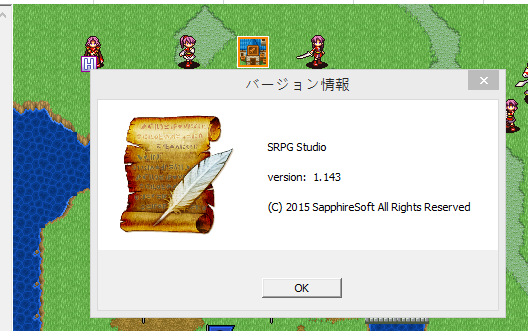
所使用的版本為:1.143
設定視窗大小:1280x720(直接使用內建,不在像以前還要加入語法腳本自訂視窗大小)
修改前的效果:
沒意外,大家打開遊戲應該也都是這樣吧?
沒錯~就是這麼如此單調的選單
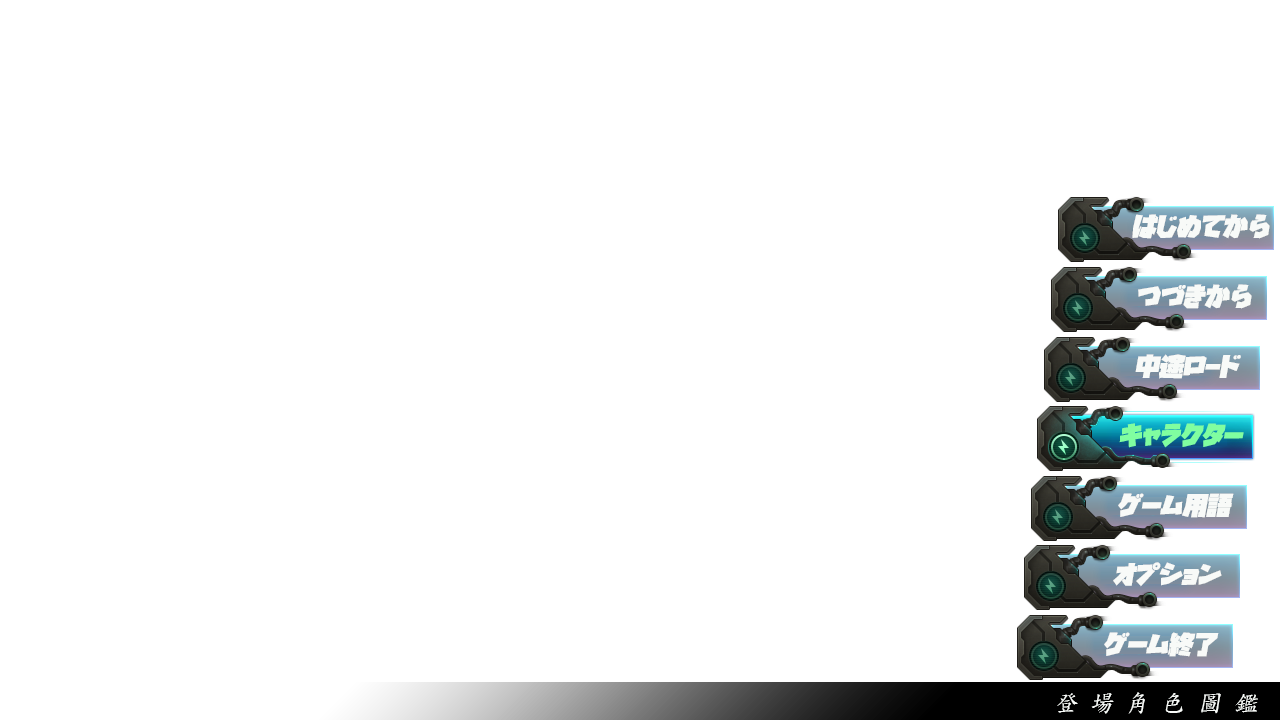
下面我是最近稍微修改的
修改後:<不確定能不能看到圖片,死圖請告知一下>
繼續摸索研究...畢竟能弄這些東西的時間只有半夜啊
而且程式碼腳本也被我修改的很亂...看來退步好多了呀..
2017年08月01日 01点08分 1
level 1
冰鏡弦月 楼主
似乎...電腦版點GIF圖看好像就正常沒問題...
這腳本大概是我認為最簡單的改造吧?
腳本教程已放在我的巴哈姆特小屋,有興趣的朋友可以去看看
https://home[呵呵]gamer.com[哈哈]tw/creationDetail[吐舌]php?sn=3667069
(之前似乎有聽過,中國大陸要去巴哈姆特似乎要越牆?)
因為想起度娘以前老是害我不能貼...找機會在試試看能不能貼在貼吧好了?
2017年08月02日 00点08分 4
level 1
冰鏡弦月 楼主
*教程放出*
這概念有點類似我之前發布的【據點改造-自定義選單背景圖片】
但這次這個腳本比較簡單一些喔
首先先Copy乾淨無修改過的『scene-title』、『utility-cursor』
這兩個分別放置在『Plugin』底下並且新增相同的資料夾放入
scene-title│放入│Plugin>scene底下
utility-cursor│放入│Plugin>utility底下
Copy好了之後,請務必下載
SRPG Studio wiki-公開スクリプト
o-to氏作製作的スクリプト
然後我們要用到スクリプト是裡面的【MP(EP)&必殺ゲージ追加】
因此,請將這裡頭的
Material(圖片資料夾)、Plugin(腳本資料夾)兩個給放在製作遊戲資料夾根目錄下
/*-----------如果不需要MP(EP)&必殺ゲージ追加等設定,
只需將Plugin>OT_AddStatus>『AddStatusWindow』、『CustomStatusArea』
給拿出來放入Plugin裡面即可,其他別複製放進去。-----------*/
所需素材:
==================================

』你沒看錯,真的是一個空白PNG圖片
#以上8張圖片都是需要下載存放在Material>OT_AddStatus底下
並且命名方式為:
空白 = NO0.png
第一張 = NO2.png
第二張 = NO3.png
~~~~~~
最後一張 = NO8.png
==================================
2017年08月02日 16点08分 5
level 1
冰鏡弦月 楼主
因為貼吧似乎排版沒辦法...所以稍微忍耐一下吧?
請將下面 TitleCommandに 開始複製到最後 })();
然後貼在記事本上存檔,命名為"system-interruption(戰鬥中途存檔開頭讀取).js"
並且放在Plugin>scene裡面。
/*============================================================*/
/*--------------------------------------------------------------------------
TitleCommandに「中断から始める」という項目を追加します。
作成者: サファイアソフト
http://srpgstudio.com/
更新履歴:
2016/09/07 カスタムデータを保存するコードを追加
2015/08/17 マウス対応コードを追加
2015/05/11 root.resetGameの呼び出しを追加
2015/04/08 公開
--------------------------------------------------------------------------*/
(function()
{var alias1 = TitleScene._configureTitleItem;TitleScene._configureTitleItem = function(groupArray) {alias1.call(this, groupArray);groupArray.insertObject(TitleCommand.Interruption, 2);};TitleCommand.Interruption = defineObject(BaseTitleCommand,{openCommand: function() {root.getLoadSaveManager().loadInterruptionFile();},moveCommand: function() {return MoveResult.END;},getCommandName: function()
{return '讀取中途紀錄';
//請留意上頭『讀取中途紀錄』文字,這是自定義選項中需要輸入相同文字的重點
},isSelectable: function() {return root.getLoadSaveManager().isInterruptionFileLoadable();}});TitleCommand.Interruption = defineObject(BaseTitleCommand,{openCommand: function() {root.getLoadSaveManager().loadInterruptionFile();},moveCommand: function() {return MoveResult.END;},getCommandName: function() {return '讀取中途紀錄';},isSelectable: function() {return root.getLoadSaveManager().isInterruptionFileLoadable();}});var alias2 = MapCommand.configureCommands;MapCommand.configureCommands = function(groupArray) {alias2.call(this, groupArray);groupArray.insertObject(MapCommand.Interruption, groupArray.length - 1);};MapCommand.Interruption = defineObject(BaseListCommand,{_questionWindow: null,openCommand: function() {this._questionWindow = createWindowObject(QuestionWindow, this);this._questionWindow.setQuestionMessage(this._getMessage());this._questionWindow.setQuestionActive(true);},moveCommand: function() {var ans;if (this._questionWindow.moveWindow() !== MoveResult.CONTINUE) {ans = this._questionWindow.getQuestionAnswer();if (ans === QuestionAnswer.YES) {root.getLoadSaveManager().saveInterruptionFile(SceneType.FREE, root.getCurrentSession().getCurrentMapInfo().getId(), this._getCustomObject());root.resetGame();}return MoveResult.END;}return MoveResult.CONTINUE;},drawCommand: function() {var x = LayoutControl.getCenterX(-1, this._questionWindow.getWindowWidth());var y = LayoutControl.getCenterY(-1, this._questionWindow.getWindowHeight());this._questionWindow.drawWindow(x, y);},getCommandName: function() {return '中断';},_getMessage: function() {return 'ゲームを中断しますか?';},_getCustomObject: function() {return {};}});
})();
/*============================================================*/
2017年08月02日 16点08分 6
level 1
冰鏡弦月 楼主
腳本修改開始:(增加文字代表修改處)
【Plugin > OT_AddStatus > AddStatusWindow.js】
=================================
(function() {
/*↓↓↓↓↓↓↓↓↓↓↓↓↓↓↓↓以下為新增圖片的宣言定義↓↓↓↓↓↓↓↓↓↓↓↓↓↓↓↓*/
No0 = {
Name : 'NO0'
, Material : 'OT_AddStatus'
, GaugeImg : 'NO0.png'
, GaugeImgID : 1
, GaugeImgX : 0
, GaugeImgY : 0
, GaugeImgWidth : 900 //圖片寬度隨意輸入,寬度在腳本內再次定義,以下皆是
, GaugeImgHeight: 74 //圖片高度隨意輸入,高度在腳本內再次定義,以下皆是
, DrawSide : true
, FontColor : 0x00ffff
//顯示消耗文字定義, UseString : '消費'
//顯示回復文字定義, RecoveryString: '回復'
//文字座標X, TextX : 0
//文字座標Y, TextY : 0
};
No1 = {
Name : 'NO1'
, Material : 'OT_AddStatus'
, GaugeImg : 'NO1.png'
, GaugeImgID : 1
, GaugeImgX : 0
, GaugeImgY : 0
, GaugeImgWidth : 900
, GaugeImgHeight: 74
, DrawSide : true
, FontColor : 0x00ffff
//顯示消耗文字定義, UseString : '消費'
//顯示回復文字定義, RecoveryString: '回復'
//文字座標X, TextX : 0
//文字座標Y, TextY : 0
};
No2 = {
Name : 'NO2'
, Material : 'OT_AddStatus'
, GaugeImg : 'NO2.png'
, GaugeImgID : 1
, GaugeImgX : 0
, GaugeImgY : 0
, GaugeImgWidth : 900
, GaugeImgHeight: 74
, DrawSide : true
, FontColor : 0x00ffff
//顯示消耗文字定義, UseString : '消費'
//顯示回復文字定義, RecoveryString: '回復'
//文字座標X, TextX : 0
//文字座標Y, TextY : 0
};
No3 = {
Name : 'NO3'
, Material : 'OT_AddStatus'
, GaugeImg : 'NO3.png'
, GaugeImgID : 1
, GaugeImgX : 0
, GaugeImgY : 0
, GaugeImgWidth : 900
, GaugeImgHeight: 74
, DrawSide : true
, FontColor : 0x00ffff
//顯示消耗文字定義, UseString : '消費'
//顯示回復文字定義, RecoveryString: '回復'
//文字座標X, TextX : 0
//文字座標Y, TextY : 0
};
No4 = {
Name : 'NO4'
, Material : 'OT_AddStatus'
, GaugeImg : 'NO4.png'
, GaugeImgID : 1
, GaugeImgX : 0
, GaugeImgY : 0
, GaugeImgWidth : 900
, GaugeImgHeight: 74
, DrawSide : true
, FontColor : 0x00ffff
//顯示消耗文字定義, UseString : '消費'
//顯示回復文字定義, RecoveryString: '回復'
//文字座標X, TextX : 0
//文字座標Y, TextY : 0
};
No5 = {
Name : 'NO5'
, Material : 'OT_AddStatus'
, GaugeImg : 'NO5.png'
, GaugeImgID : 1
, GaugeImgX : 0
, GaugeImgY : 0
, GaugeImgWidth : 900
, GaugeImgHeight: 74
, DrawSide : true
, FontColor : 0x00ffff
//顯示消耗文字定義, UseString : '消費'
//顯示回復文字定義, RecoveryString: '回復'
//文字座標X, TextX : 0
//文字座標Y, TextY : 0
};
No6 = {
Name : 'NO6'
, Material : 'OT_AddStatus'
, GaugeImg : 'NO6.png'
, GaugeImgID : 1
, GaugeImgX : 0
, GaugeImgY : 0
, GaugeImgWidth : 900
, GaugeImgHeight: 74
, DrawSide : true
, FontColor : 0x00ffff
//顯示消耗文字定義, UseString : '消費'
//顯示回復文字定義, RecoveryString: '回復'
//文字座標X, TextX : 0
//文字座標Y, TextY : 0
};
No7 = {
Name : 'NO7'
, Material : 'OT_AddStatus'
, GaugeImg : 'NO7.png'
, GaugeImgID : 1
, GaugeImgX : 0
, GaugeImgY : 0
, GaugeImgWidth : 900
, GaugeImgHeight: 74
, DrawSide : true
, FontColor : 0x00ffff
//顯示消耗文字定義, UseString : '消費'
//顯示回復文字定義, RecoveryString: '回復'
//文字座標X, TextX : 0
//文字座標Y, TextY : 0
};
No8 = {
Name : 'NO8'
, Material : 'OT_AddStatus'
, GaugeImg : 'NO8.png'
, GaugeImgID : 1
, GaugeImgX : 0
, GaugeImgY : 0
, GaugeImgWidth : 900
, GaugeImgHeight: 74
, DrawSide : true
, FontColor : 0x00ffff
//顯示消耗文字定義, UseString : '消費'
//顯示回復文字定義, RecoveryString: '回復'
//文字座標X, TextX : 0
//文字座標Y, TextY : 0
};
/*↑↑↑↑↑↑↑↑↑↑↑↑↑↑↑↑以上為新增自定義圖片宣言定義↑↑↑↑↑↑↑↑↑↑↑↑↑↑↑↑*/
// EPゲージ素材や表記名の宣言OT_EPFrameSetting = {
=================================
2017年08月02日 16点08分 7
level 1
谢谢大佬!很有用!
2020年07月15日 17点07分 12
1